
How to Fix Multi-GPU Model Loading Errors in LM Studio
Running large language models locally is super rewarding, but VRAM is the real killer. A cheap trick I’ve been using to squeeze out more VRAM without dropping cash on a whole new high-end rig? Just drop an older GPU into your PC right next to your main card.
Thing is, if you’re running everything through LM Studio, this multi-GPU setup might cause some issues.
The DeviceId Problem
You open LM Studio, pick a model that should fit easy in your combined VRAM and you got Model load error or straight-up Out of Memory crash.
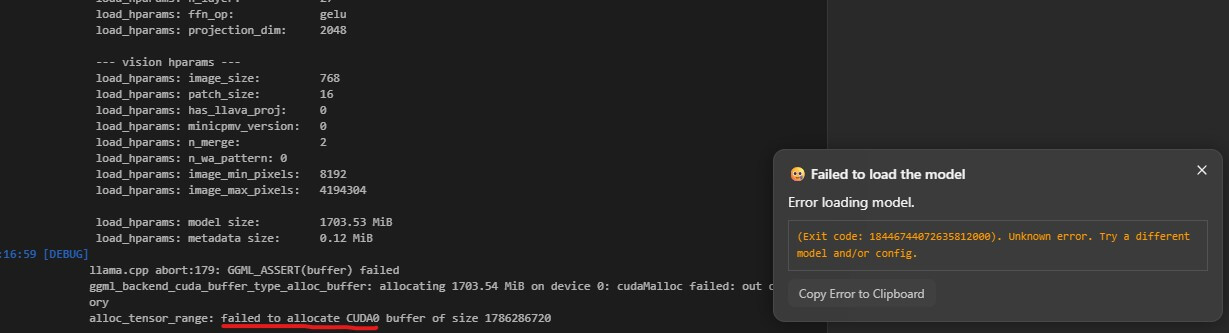
What’s the cause? It’s about how your motherboard and Windows assign Device IDs to the cards (normally 0 and 1, based on which PCIe slot they’re in). The llama.cpp backend that LM Studio uses has this quirk where it almost always tries to shove the model onto the lowest ID first (device 0).
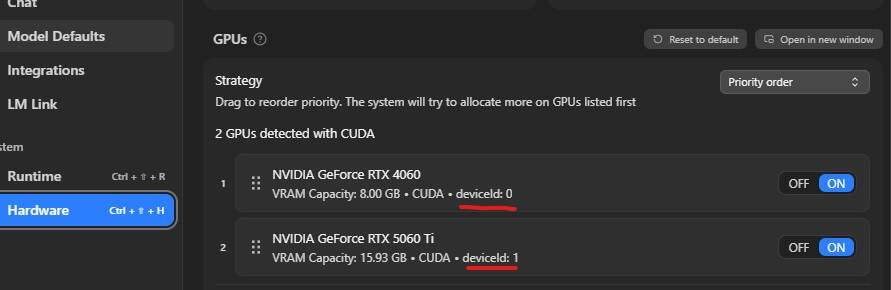
If your deviceid0 is the bigger VRAM GPU, you’re lucky. But if it’s not and your smaller card happens to be sitting in the slot that got labeled device 0, LM Studio tries to load (almost) everything there first. It runs out of memory, crashes.
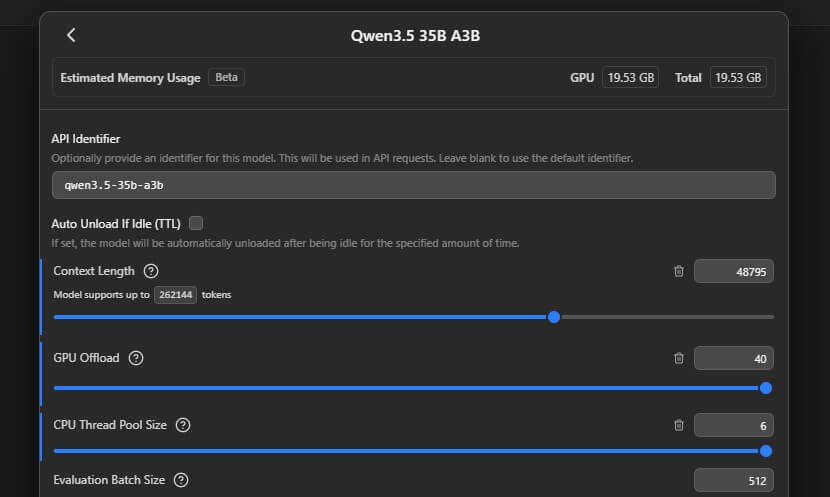
For example, I had 16GB and 8GB cards so the combined VRAM was 24GB. I loaded Qwen 3.5 35B IQ3_XSS 19GB which should be comfortably fit. However, the LM studio loaded around 10 GB to the 16GB card and tried to dump the rest into 8GB card which resulted in “Model Load Error“. (It ignores the GPU “Priority Order” I set in the LM Studio settings completely)
How to Fix “Model Load Error”
You could swap the PCIe slot between these cards. However, it’s not possible for those using eGPU setup (I used oculink via M.2)
Luckily there’s a more simple software way. Just set a Windows environment variable to mess with the CUDA order.
Variable name: CUDA_VISIBLE_DEVICES
Variable value: 1,0
(Note: The value 1,0 tells the system “Treat device 1 as the first device, and device 0 as the second device.” If you have a different number of GPUs, you’d adjust this sequence accordingly).
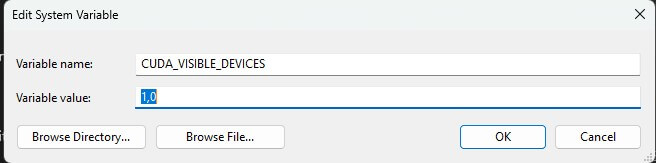
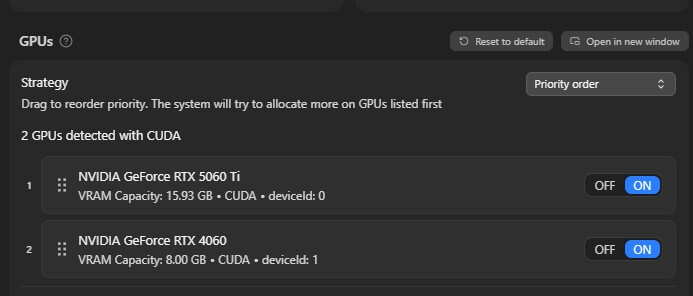
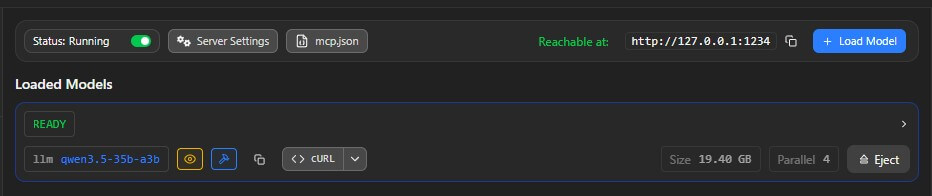
And now you can load your AI model into the combined VRAM 🙂
That's all for this post. If you like it, check out our YouTube channel and our X to stay tune for more dev tips and tutorials

The explanation that llama.cpp fills device 0 first, so a smaller card in the lower slot gets overloaded, finally explains the out of memory errors I saw with a 16GB plus 8GB setup. Adding an older GPU for extra VRAM is a cheap trick worth knowing.